
Wireless Android Auto Adapters and In-Car Connectivity Guide
Cut the cord in your car. How plug-and-play wireless Android Auto dongles connect over Bluetooth and 5GHz Wi-Fi, resolve latency, and maintain stable projection.
Modern vehicles increasingly arrive with large, high-resolution infotainment touchscreens, yet millions of cars on the road still require plugging in a physical USB cable every time you want to access navigation and media via Android Auto. Damaged cables, loose car USB ports, and connection dropouts during sharp turns are universal driver frustrations.
Fortunately, plug-and-play wireless adapters have matured into seamless, reliable accessories. This best wireless android auto adapter guide explains the dual-band connectivity architecture behind these adapters, how they overcome latency hurdles, and how to maintain a rock-solid link on every commute.
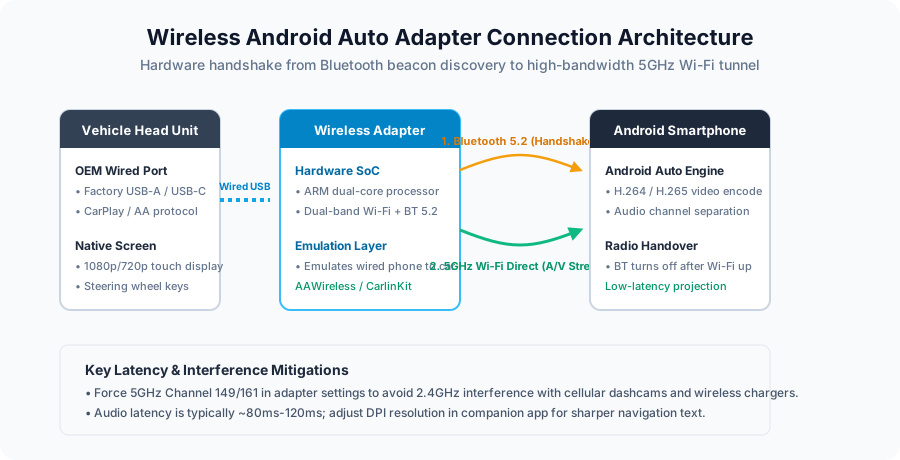
1. How Wireless Android Auto Adapters Actually Work
A wireless Android Auto dongle acts as an intelligent hardware bridge between your car’s factory infotainment unit and your smartphone:
- Wired Protocol Emulation: The adapter connects to your vehicle’s factory data port (USB-A or USB-C). To the car’s head unit, the adapter presents itself as a standard wired Android smartphone.
- Initial Bluetooth 5.2 Handshake: When you start your vehicle, the adapter powers on and broadcasts a Bluetooth Low Energy (BLE) beacon. Your phone recognizes the paired device and completes a secure cryptographic handshake.
- 5GHz Wi-Fi Tunnel Handover: Because Bluetooth bandwidth (roughly 2 Mbps) is far too slow to stream 1080p video feeds and high-bitrate audio, the initial Bluetooth handshake transmits Wi-Fi Direct credentials. The phone immediately connects to the adapter’s private 5GHz Wi-Fi network.
- Active Projection: The Bluetooth link steps aside, and the entire Android Auto data stream—H.264/H.265 video projection, touchscreen input events, microphone audio, and GPS telemetry—travels over the low-latency 5GHz Wi-Fi tunnel.
Once configured, this entire sequence executes automatically in the background within 10 to 20 seconds of turning your ignition key, leaving your phone in your pocket or bag.
2. Key Criteria When Evaluating Wireless Adapters
While dozens of generic dongles flood marketplace listings, reputable units distinguish themselves across four engineering benchmarks:
| Performance Metric | Budget Generic Dongles | Premium Adapters (AAWireless, CarlinKit, Motorola MA1) |
|---|---|---|
| Wi-Fi Frequency | 2.4 GHz only (Prone to interference) | 5.0 GHz / 5.8 GHz DFS (Clean, high bandwidth) |
| Boot & Connection Time | 35–55 seconds | 12–18 seconds |
| Companion App & Firmware | None (Static ROM) | Dedicated App (DPI tuning, bug fixes, channel select) |
| Audio Latency | 300ms–500ms (Noticeable lag on skipping) | 80ms–120ms (Imperceptible in navigation & music) |
3. Troubleshooting Connection Drops & Audio Latency
If you experience periodic disconnects or stuttering audio while driving, common environmental interferences are usually responsible:
1. Wi-Fi Channel Congestion Near Toll Booths & Highway Gantries
Automated highway toll systems, radar speed monitors, and municipal repeaters often operate on shared 5GHz frequencies. If your adapter is set to an overlapping channel (such as Channel 36 or 40), the signal can drop for 5 seconds when driving under a toll gantry. Fix: Open the adapter’s companion app and manually force the Wi-Fi frequency to a higher channel, such as Channel 149 or 161.
2. Conflicting Wireless Networks (Dashcams & Car Hotspots)
If your phone is configured to auto-connect to an in-car Wi-Fi dashcam or an LTE hotspot, Android may attempt to switch network gateways while driving. Disable auto-reconnect on secondary in-car Wi-Fi networks so the Android Auto connection retains exclusive network priority.
3. DPI Resolution Adjustments for Crisp Navigation
If your vehicle has an ultra-wide screen and Android Auto appears pixelated or shows oversized icons, premium adapters allow custom display density (DPI) adjustments. Lowering the DPI value in the companion app renders finer map detail, smaller icons, and full multi-widget split-screen layouts.
4. Battery Consumption Considerations
Wireless projection increases battery consumption on your smartphone because the phone is actively rendering the interface and transmitting high-bitrate video via Wi-Fi.
For short commutes under 45 minutes, battery impact is negligible (typically 3%–5%). On extended road trips exceeding two hours, pairing your wireless adapter with a dedicated magnetic Qi2 or fast wireless car charger ensures your handset stays fully charged while remaining completely cable-free.
Related articles
Android Auto Keeps Disconnecting: A Fix Order That Saves Time
Separate USB, wireless and app failures, test one change at a time, and prepare a useful support record before resetting Android Auto or buying replacements.
Read article
Wired vs. Wireless Android Auto: Which Setup Fits Your Car?
Compare wired and wireless Android Auto by actual vehicle support, setup, charging and daily use. Includes a decision guide and a parked-car test worksheet.
Read article
The Android Auto Cable Checklist: Avoiding Dropouts Before You Drive
A short cable, real data support, clean connectors, and the right phone settings solve many wired Android Auto connection problems.
Read article