
Android Enterprise Explained: Work Profiles, Full Management and Dedicated Devices
Choose an Android Enterprise management model by ownership and work needs. Understand work profiles, company-owned options, policy scope and pilot acceptance.
AI-generated editorial scene, not a product test photograph. Device details are illustrative.
Android Enterprise provides Google’s tools and APIs for managing Android devices and apps at work. Start by deciding who owns the device, whether personal use is allowed, and what job it must perform. Those answers help determine the management model; a management console’s feature list comes afterward.
The most important distinction is not “managed versus unmanaged.” A personally owned phone with a work profile and a company-owned task device have different purposes and management boundaries. Treating them as one standard build creates unnecessary support and privacy confusion.
This AI-assisted guide is based on official documentation checked September 5, 2026. Diagrams and planning worksheets are original editorial explanations. No management product or device enrollment was tested for this article.
Four deployment situations to distinguish
Google’s Android Enterprise overview describes work profiles on personally owned devices, work profiles on company-owned devices allowing personal use, fully managed work-only devices, and dedicated devices. Dedicated devices are a task-focused subset of full management, commonly restricted to one app or a selected app set.
A work profile separates work apps and data from the personal space. On a company-owned device with a work profile, the organization can also impose additional device-wide and personal-use restrictions. That is why “has a work profile” does not, by itself, describe every management permission.
| Situation | Starting model to evaluate | Planning question |
|---|---|---|
| Employee uses a personal phone for work | Personally owned work profile | Can work access fit within the intended boundary? |
| Company provides a phone with personal use allowed | Company-owned work profile | Which additional restrictions are needed and disclosed? |
| Company provides a work-only phone | Fully managed | Which device-wide controls serve the role? |
| Device serves a defined operational task | Dedicated device | Which functions and recovery paths must remain available? |
These are starting points for evaluation, not automatic approval of a particular configuration. Confirm the supported enrollment and policies in the chosen management solution.
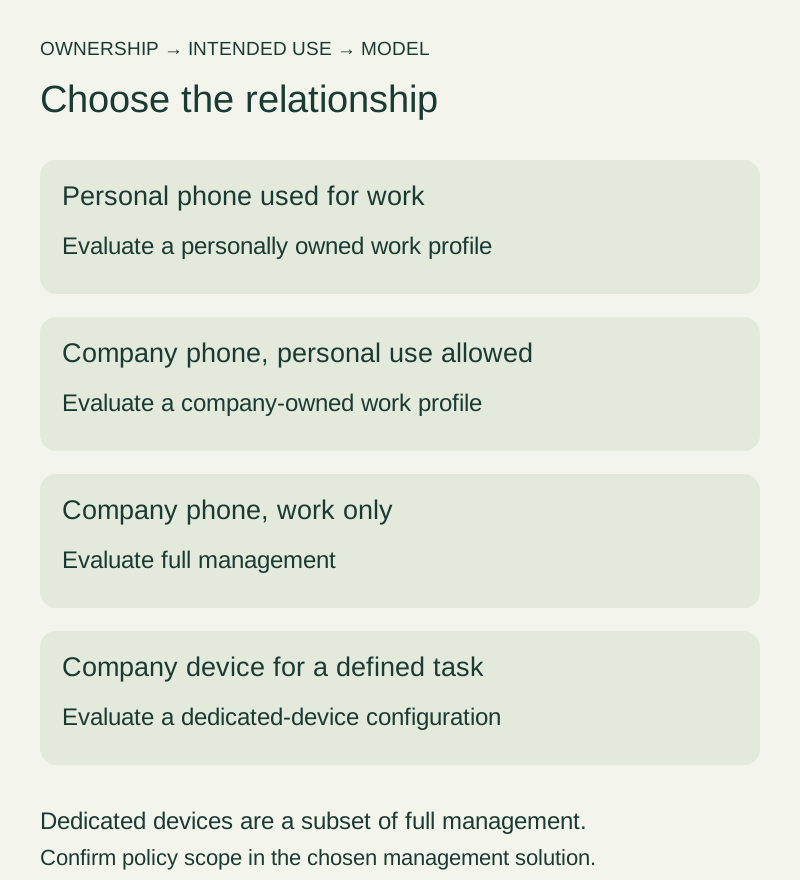
Figure 1. Choose the management relationship before configuring policies. Dedicated devices are a specialized fully managed use case.
What a work profile means to an employee
Google’s work profile help page explains the separate work space and how users identify work apps through a briefcase badge. It describes organizational management of work apps and data while personal apps and data remain separate. Use that official explanation as a starting point for employee communication, not as a substitute for the organization’s actual policy notice.
Show employees what they will encounter during enrollment. Identify the management application, approved support channel, and work applications they are expected to use. Explain where to ask questions before accepting prompts they do not understand.
Avoid the blanket statement that IT can see “nothing about the phone.” Distinguish personal content from the device and management information the solution reports. Ask the administrator to provide the actual inventory fields and policy scope for the selected ownership model.
Likewise, do not tell a company-phone user that personal use means there are no device-level restrictions. Describe the chosen limits in plain language and verify that the enrollment notice and support documentation match the implemented configuration.
Full management and task-focused devices
Google’s terminology reference distinguishes company-owned work-only management from mixed-use work profiles and identifies dedicated devices as purpose-specific deployments. Use current terms in procurement and support documents; an old acronym in a vendor article may need mapping before comparison.
For a work-only phone, start with the activities required by the role. A field technician may need a camera, offline forms, and a dispatch application. Do not disable a function solely because a restrictive template happens to include it.
For a task device, define the task and its exceptions. A reception screen needs a usable recovery procedure when the visitor application fails. A scanner may need controlled access to network setup or peripheral pairing. “Only one app” is incomplete if nobody can recover the device when that app stops working.
Our Android kiosk-mode guide covers the task-device planning path. Use it for operational requirements rather than treating kiosk mode as a visual change to the home screen.
Separate Android capability from the management product
An Android Enterprise deployment still needs a management solution and an operational owner. Google’s feature list organizes capabilities by management scenario and Android version, with distinctions such as standard, advanced, optional, and not applicable. A feature appearing somewhere in that list does not prove it exists in your vendor’s console for your intended mode.
Ask vendors to demonstrate each required outcome on a representative device. Record the management mode, software version, policy setting, and observed result. A slide stating “supports Android Enterprise” is not sufficient evidence for a detailed workflow.
For terminology about the management layer, see MDM versus EMM for Android. Keep that product-category discussion separate from the device’s ownership and management relationship.
This distinction is particularly useful when comparing products. Two vendors may use the same feature name for different approval steps, reporting, or scope. Compare the work you need to accomplish, not merely matching checkboxes.
Write the work requirement before the policy
Choose one representative role and describe a normal session from beginning to end. Include signing in, obtaining required information, using accessories, saving work, and handing the device back or ending the day.
Then identify what must be protected or constrained. Turn each requirement into an observable result. “The approved work app is available after enrollment” is testable. “The device is secure” is too broad to serve as a pilot acceptance criterion.
Use this planning worksheet:
| Requirement | Evidence to collect | Responsible owner |
|---|---|---|
| User can begin work | Enrollment and sign-in completed with the intended account | Deployment team |
| Required apps are available | Approved app and configuration appear on the device | App administrator |
| Network access works | Required services are reachable under the proposed policy | Network team |
| Personal-use boundary is clear | Enrollment notice and actual scope agree | Policy owner |
| Device can recover | Documented recovery exercise succeeds on a test unit | Support team |
| Exit is controlled | Expected removal or reset outcome is demonstrated | Device lifecycle owner |
These are suggested responsibilities, not mandatory department names. A small organization may assign several roles to one person, but the decisions still need an owner.
Plan enrollment before handing out hardware
Google’s enrollment and provisioning documentation ties provisioning to ownership, personal-use settings, enrollment tokens, and the available setup methods. It is developer guidance; an administrator should follow the corresponding workflow documented by the chosen management provider.
Ask whether the selected method requires a new or factory-reset device and whether it supports the intended mode. Resolve that before employees store personal information or begin production work on the handset.
Use approved test devices and accounts for the pilot. Do not factory-reset a production phone merely to explore another management mode. Record any existing enrollment, account access, and recovery requirements before planning a transition.
Protect enrollment codes and tokens. Do not place working credentials in a public how-to document or a shared screenshot. A diagram can illustrate the setup relationship without exposing a real enrollment secret.
Pilot complete work sessions, not just enrollment
A successful enrollment proves only that one part of setup completed. Ask a pilot user to perform the role’s ordinary work using nonproduction or otherwise approved test data.
Check the required application flow under the proposed policy. If the role uses a camera, document whether it is available in the intended context. If the role needs a headset, scanner, dock, or display, include that equipment in the test rather than assuming management support establishes accessory compatibility.
Our Android accessory checklist helps record exact equipment. The USB-C video-output guide is relevant where an external display is part of the job. The enrollment result does not settle those hardware questions.
Include a planned interruption: for example, an app restart or temporary network unavailability on a test device. Define the expected user message and recovery route before the exercise. Do not deliberately disrupt production connectivity to produce a test result.
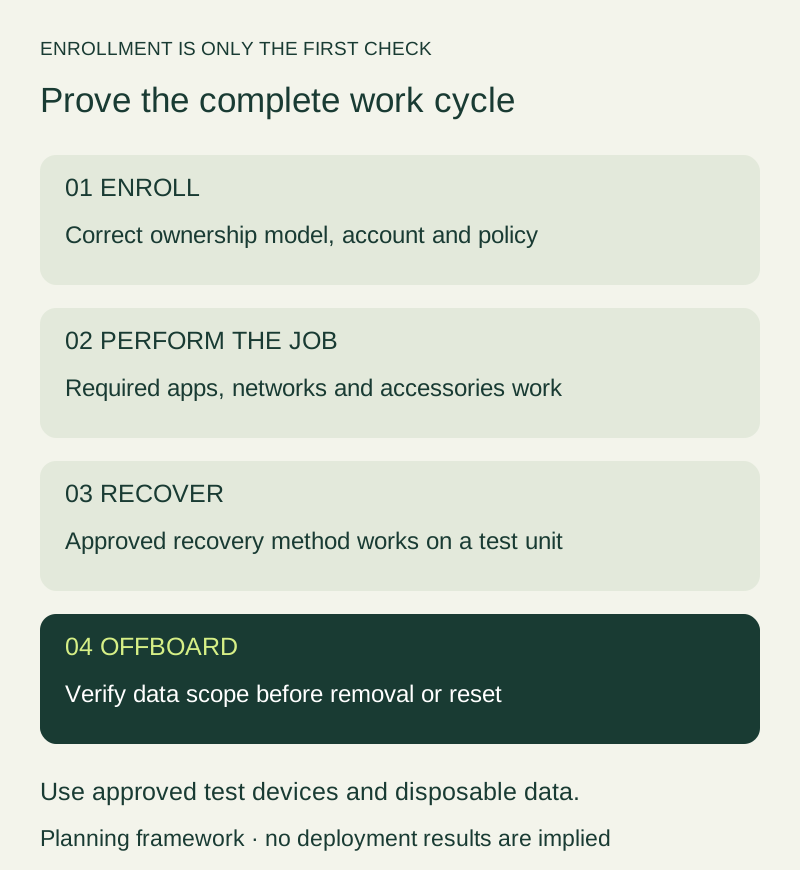
Figure 2. Enrollment is one acceptance step. Complete the work, recovery, and exit checks before expanding deployment.
Explain privacy with evidence from the actual setup
Prepare a short employee-facing notice describing ownership, allowed use, managed apps, support access, and the actions administrators may take. Review it against the selected mode and the management solution’s documentation.
Have the policy owner and appropriate privacy or legal reviewers evaluate the notice where required. This guide explains technical planning and does not establish an organization’s legal rights to monitor a device.
During the pilot, compare what the administrator can view with what employees were told. Use test information for the demonstration. If the console exposes an unexpected field or a policy has broader scope than intended, resolve the discrepancy before rollout.
Provide a clear question-and-correction route. Employees should not need to infer privacy boundaries from a briefcase icon or an unexplained enrollment prompt. Documentation that accurately describes a narrower deployment is more useful than a sweeping privacy promise.
Define recovery and offboarding early
Ask what happens when a user loses access, changes roles, returns a company device, or leaves the organization. Assign approval for any command that removes data. The person opening a support ticket should not automatically be the person authorizing a wipe.
Test the exact management action on a designated test unit with disposable data. A command that removes a work profile and a command that resets a whole device have different consequences. Do not infer the target from a familiar button label alone.
Record the expected result, affected data, remaining accounts, and steps needed to reuse the device. Include the management provider’s documentation and the device state in the record.
Plan for an offline device as a separate question. Ask how the solution reports pending actions and what evidence shows that an action actually completed. A queued command is not proof that the device has received and applied it.
Decide whether the pilot is ready to expand
Create a short acceptance list before evaluation begins. Identify which failures prevent rollout and which minor issues can be addressed through training or documentation.
Record each result as passed, failed, or not tested, with an owner for unresolved items. A vendor demonstration on a different device can inform the plan but should not replace evidence for your own required configuration.
A reasonable handoff includes the approved mode, device and software baseline, enrollment instructions, policy version, app list, employee notice, recovery procedure, and support contacts. Keep the date and any known limitations visible.
Expand only after the responsible owners accept the remaining risk and the intended work is demonstrated. Android Enterprise supplies management capabilities; dependable operations require an enrollment, support, and lifecycle process around them.
Frequently asked questions
Is Android Enterprise a replacement for an EMM console?
No. Distinguish the Android management capabilities from the product and workflows used to administer them. Confirm the actual solution and supported mode.
Does every company-owned phone need full management?
No. Evaluate whether personal use is allowed and whether a company-owned work profile fits the requirements. Ownership alone does not answer the entire use-case question.
Does a dedicated device have to run exactly one app?
A task-focused deployment can involve a selected set of apps. Define the permitted job and support exceptions rather than treating the word “dedicated” as a one-app rule.
Can a feature list replace a pilot?
No. It is a reference for capability questions. The pilot establishes whether the selected device, management solution, policies, and applications perform the intended work together.
Sources and verification
- Android Enterprise overview — management situations and program context.
- Android Enterprise terminology — ownership and deployment terminology.
- Work profile help — employee-facing work-profile explanation.
- Android Enterprise feature list — scenario and version applicability.
- Enrollment and provisioning — implementation and enrollment context.
Checked September 5, 2026. No vendor console, enrollment, privacy boundary, or removal command was tested for this article. Verify requirements against your actual deployment.
Revision: added company-owned mixed use, employee communication, product capability checks, enrollment planning, pilot acceptance, and recovery and offboarding safeguards.
Related articles
Android Kiosk Mode: What It Is and What to Plan Before Deployment
Distinguish Android screen pinning from managed kiosk deployments. Plan single or multi-app use, enrollment, network recovery and a representative acceptance pilot.
Read article
MDM vs. EMM for Android: What Your Team Actually Needs
Compare MDM, EMM and UEM by Android workflows rather than labels. Includes application-management boundaries, vendor demo questions and an evidence-based scorecard.
Read article
Android Auto Keeps Disconnecting: A Fix Order That Saves Time
Separate USB, wireless and app failures, test one change at a time, and prepare a useful support record before resetting Android Auto or buying replacements.
Read article